SEO poisoning is one of the most frustrating WordPress hacks because the website can look completely normal to the owner while search engines see something very different.
In many cases, the homepage, posts, and pages appear clean when you visit the site directly. But Google Search may show Japanese keywords, casino terms, pharmaceutical spam, adult content, fake product pages, or thousands of strange indexed URLs under your domain.
This is not just a content problem. It is a trust problem.
SEO poisoning attacks are designed to abuse your domain reputation. Instead of crashing the site or showing obvious malware to every visitor, attackers use your website to rank spam pages, redirect search visitors, or show hidden content to search engines.
This case study explains how cloaked SEO poisoning works, why traditional scanners can miss it, how to detect it properly, and how tools like the Securewp Remote Security Scanner and SiteFort Security Plugin can help identify and prevent this type of attack.
What Is SEO Poisoning in WordPress?
SEO poisoning is a type of hack where attackers use your website to publish or serve spam content for search engines.
The goal is usually to manipulate search results, steal search traffic, redirect visitors to spam sites, or use your domain’s authority to promote harmful or low-quality pages.
Common examples include:
- Japanese keyword spam
- Pharmaceutical spam
- Casino or betting keywords
- Adult content injections
- Fake shopping pages
- Hidden doorway pages
- Spam titles and meta descriptions
- Redirects from Google Search results to suspicious sites
- Thousands of random URLs indexed under your domain
Google’s Japanese keyword hack guide describes a common version of this attack where compromised sites generate auto-created Japanese text pages.
Why This Attack Is Hard to Detect
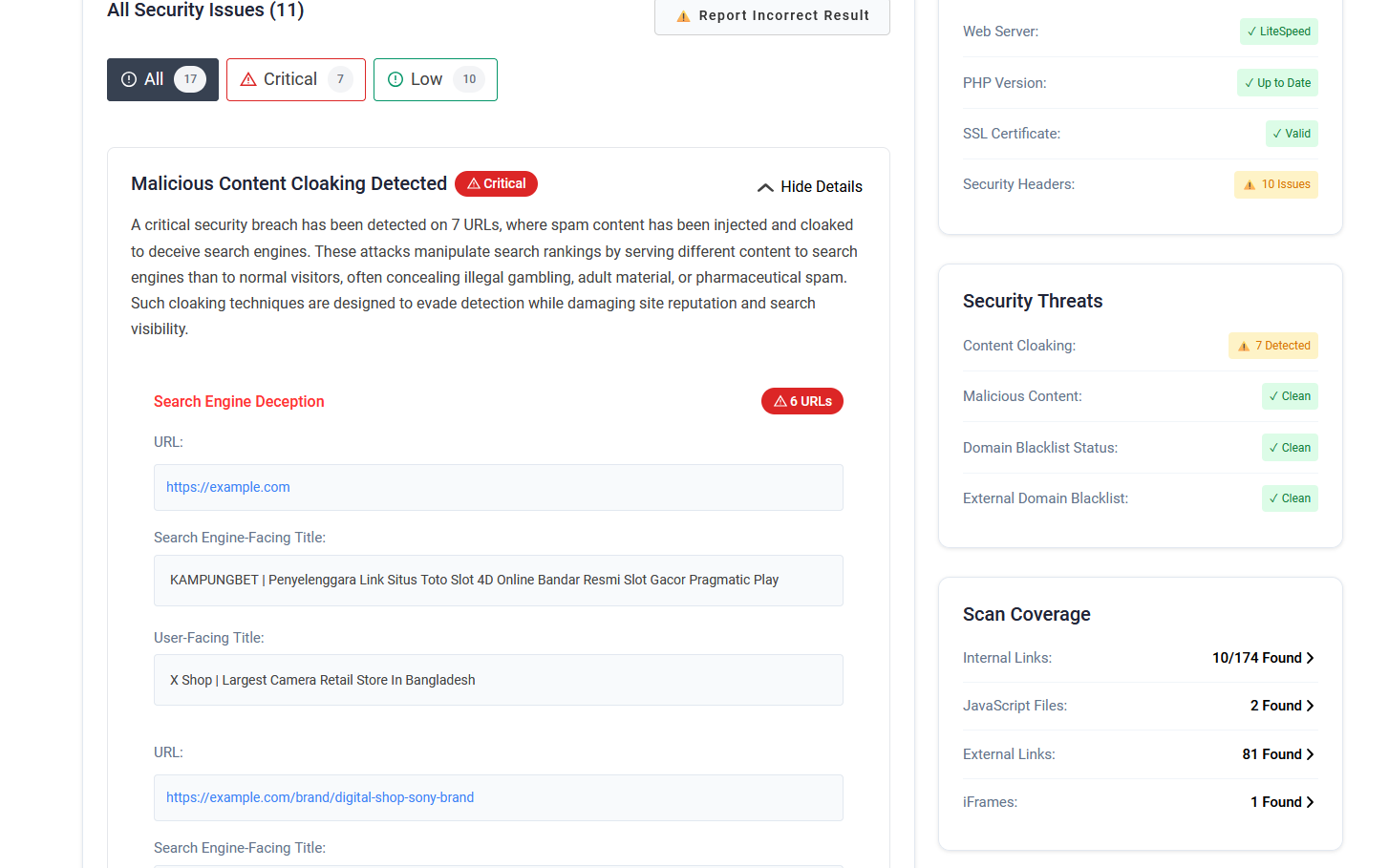
The most difficult part of SEO poisoning is that the attack is often cloaked.
Cloaking means the site shows different content depending on who is visiting. For example:
- Logged-in admins see the normal website.
- Normal direct visitors may see clean pages.
- Googlebot may see spam content.
- Visitors from Google Search may be redirected.
- Mobile users may see different content from desktop users.
- Visitors from certain countries may see spam while others do not.
This creates a dangerous false sense of security. The site owner opens the website, sees everything looks fine, and assumes there is no problem. Meanwhile, Google may be crawling a completely different version.
Google’s spam policies include cloaking and sneaky redirects as spam behaviors, and policy violations can cause pages or an entire site to be ranked lower or omitted from Search.
Why Traditional Security Scanners Can Miss It
Traditional security tools are useful, but SEO poisoning can create blind spots because the malicious content is not always stored as a simple infected file.
1. File scanners may not see dynamic spam
Many WordPress security plugins scan files for known malware patterns. That helps detect backdoors, suspicious PHP, modified core files, and injected scripts.
But SEO poisoning may be generated dynamically from the database, plugin settings, malicious rewrite rules, or remote content pulled only under certain conditions. If the spam is not stored as a simple malicious file, a file-only scan may miss it.
2. Server-side tools do not always see the outside view
Hosting-level scanners often inspect the site from the server environment. That can miss cloaking rules that only activate for external visitors, search engine crawlers, specific countries, or search-result referrers.
3. Single-location scanners can be bypassed
Some malware checks the visitor’s IP address, user agent, referrer, cookie state, or location. If the scanner always visits from the same location with the same user agent, the malware may serve a clean page to avoid detection.
4. Logged-in admins are often excluded
Many SEO poisoning scripts avoid logged-in WordPress users. This helps the infection stay hidden from site owners and developers.
The result is simple: your website may appear clean in the dashboard, while Google Search shows spam content from your domain.
Warning Signs of SEO Poisoning
You may be dealing with an SEO poisoning hack if you notice:
- Google results showing Japanese, casino, pharma, or adult keywords under your domain
- Search results pointing to URLs you never created
- Visitors from Google being redirected to suspicious websites
- Spam titles or descriptions in Google snippets
- Large numbers of “Crawled – currently not indexed” URLs in Search Console
- Unknown sitemaps submitted in Google Search Console
- Security issues or manual actions in Search Console
- Pages that look clean in the browser but show spam in Google’s cached or crawled view
- Unusual URL patterns such as random query strings, fake product paths, or strange directories
Search operators can help you quickly check for signs:
site:example.com
site:example.com casino
site:example.com viagra
site:example.com Japanese
site:example.com inurl:index.php?
site:example.com inurl:product
Replace example.com with your own domain.
How the Securewp Remote Scanner Helps Detect Hidden SEO Threats
The Securewp Remote Security Scanner is useful because it checks the site from the outside.
That outside perspective matters for SEO poisoning. The problem is often not visible inside the WordPress dashboard or during a normal logged-in visit.
The remote scanner can help detect public-facing issues such as:
- Visible malware indicators
- Suspicious redirects
- Search-result redirect behavior
- Spam keyword patterns
- Exposed sensitive files
- Blacklist status
- Security header gaps
- Differences between normal visitor behavior and crawler-like behavior
This does not replace file-level scanning. Instead, it adds an important outside-in view: what visitors, crawlers, and search engines may be seeing from outside your admin session.
How SiteFort Helps from Inside WordPress
While the remote scanner checks the public-facing version of the site, SiteFort Security Plugin helps investigate and secure WordPress from the inside.
SiteFort can help detect and prevent SEO poisoning by checking for:
- Backdoors
- Web shells
- Malicious PHP
- Injected JavaScript
- Suspicious redirects
- SEO spam indicators
- Modified core files
- Vulnerable plugins and themes
- Exposed sensitive files
- Suspicious file changes
It also helps reduce reinfection risk with:
- Firewall protection
- Bot blocking
- Login security and 2FA
- Hardening controls
- Vulnerability alerts
- Audit logs
- Cloudflare Sync for selected blocking rules
Used together, the Securewp Remote Security Scanner and SiteFort give two different views of the same problem:
- Remote scanner: What search engines, guests, and external visitors may see.
- SiteFort: What is happening inside WordPress files, users, plugins, themes, settings, and logs.
How to Investigate a Suspected SEO Poisoning Hack
If you suspect SEO poisoning, do not rely on one test. Check from multiple angles.
1. Search your own domain
Start with Google search operators:
site:yourdomain.com
site:yourdomain.com spam-keyword
site:yourdomain.com inurl:index.php?
Look for strange titles, descriptions, URLs, or languages that do not belong to your site.
2. Check Google Search Console
Review these areas:
- Security issues: Look for hacked content, malware, or deceptive pages.
- Manual actions: Check whether the site has received a penalty.
- Sitemaps: Remove unknown or spam sitemaps.
- Pages report: Look for strange indexed or crawled URLs.
- Users and permissions: Remove unauthorized owners or users.
3. Test as a logged-out visitor
Use an incognito/private browser window and test important pages while logged out of WordPress.
4. Test from search results
Click your result from Google Search and compare it with a direct visit. If only search-result visitors are redirected, the malware may be checking the referrer.
5. Test mobile and desktop
Some SEO poisoning campaigns target only mobile visitors because site owners often check from desktop.
6. Scan from outside and inside
Use the Securewp Remote Security Scanner for the external view, then use SiteFort inside WordPress to check files, vulnerabilities, suspicious redirects, modified core files, malware indicators, and security logs.
Where SEO Poisoning Usually Hides
SEO poisoning can be stored or triggered from many places, including:
- Modified theme files such as
functions.php,header.php, orfooter.php - Fake plugin folders
- Malicious code in real plugin files
- WordPress core file modifications
.htaccessor Nginx rewrite ruleswp-config.php- PHP files inside
wp-content/uploads - Database entries in
wp_options - Injected post, page, widget, or page builder content
- Malicious cron jobs
- Remote scripts loaded from attacker-controlled domains
Suspicious patterns to look for include:
eval
base64_decode
gzinflate
str_rot13
String.fromCharCode
document.write
window.location
location.href
atob
file_get_contents
curl_exec
These functions are not always malicious, but they deserve careful review when found in unexpected files or injected content.
How to Clean SEO Poisoning from WordPress
Cleaning SEO poisoning requires both malware cleanup and search cleanup.
1. Take a full backup first
Before deleting anything, take a backup of the current infected site. This helps with investigation and gives you a rollback point if cleanup removes something important.
2. Remove malware and backdoors
Clean infected files, fake plugins, malicious PHP, injected JavaScript, database spam, suspicious redirects, and modified core files.
3. Replace core, plugin, and theme files
Where possible, replace WordPress core, plugin, and theme files with clean copies from trusted sources instead of manually editing heavily infected files.
4. Remove unauthorized users
Check WordPress users and Google Search Console users. Remove anyone you do not recognize.
5. Reset credentials
Reset WordPress admin, hosting, SFTP/FTP, database, Cloudflare/DNS, and email passwords.
6. Update vulnerable components
Update WordPress core, plugins, and themes. Remove abandoned or nulled software.
7. Return proper status codes for spam URLs
Spam pages that should not exist should return 404 Not Found or 410 Gone. Do not redirect thousands of spam URLs to the homepage.
8. Submit a clean sitemap
Remove spam sitemaps from Search Console and submit a clean sitemap containing only legitimate indexable pages.
9. Request review if needed
If Google Search Console shows a security issue or manual action, request review after the site is fully cleaned and secured.
How to Prevent SEO Poisoning from Returning
After cleanup, focus on preventing reinfection.
- Keep WordPress core, plugins, and themes updated.
- Remove abandoned plugins and themes.
- Never use nulled plugins or themes.
- Enable two-factor authentication for administrators.
- Use strong, unique passwords for all accounts.
- Remove unknown users and unnecessary admin accounts.
- Disable file editing in WordPress admin.
- Block PHP execution in uploads where possible.
- Protect sensitive files and backup files.
- Use a WordPress firewall and bot protection.
- Monitor vulnerabilities.
- Scan for malware regularly.
- Review audit logs after suspicious changes.
- Check Google Search Console regularly.
SiteFort helps with many of these layers: hardening, firewall protection, bot blocking, login security, 2FA, vulnerability alerts, malware scanning, audit logs, and Cloudflare Sync.
The Cost of Delayed Detection
SEO poisoning can damage more than the infected page.
If the issue stays active for too long, the site may experience:
- Loss of search rankings
- Spam URLs indexed under the domain
- Security warnings in browsers or search results
- Manual actions or security issues in Search Console
- Reduced visitor trust
- Lower conversion rates
- Longer recovery time after cleanup
Recovery can take time because Google needs to recrawl the cleaned site, process removed URLs, update snippets, and rebuild trust signals. Early detection is much easier than cleaning thousands of indexed spam URLs later.
Why External Visibility Matters
SEO poisoning is dangerous because it can hide in plain sight. The website may look clean to the owner while search engines and visitors from Google see spam, redirects, or hacked content.
That is why external visibility matters.
Use the Securewp Remote Security Scanner to check what outsiders and search engines may see. Use SiteFort inside WordPress to scan for malware, monitor vulnerabilities, apply hardening, block bad traffic, protect logins, review audit logs, and reduce reinfection risk.
If your site is already showing Japanese keywords, spam URLs, or suspicious redirects in Google Search, treat it as a full WordPress compromise — not just an SEO issue. Clean the malware, remove the backdoor, secure the site, fix Search Console, and monitor closely until the spam footprint disappears.