Learn the best Securewp settings to protect a WordPress website. This guide shows what to enable, what to test carefully, and how to configure hardening, login security, firewall rules, Cloudflare sync, vulnerability alerts, malware scanning, and notifications without breaking your site.
1. Recommended Securewp Hardening Settings
Start with Securewp → Hardening. This is where you reduce the most common WordPress attack surfaces before tuning firewall rules or scan schedules.
Hardening is the foundation because it removes risky defaults, protects login behavior, blocks username exposure, prevents direct PHP execution, and adds browser-level protections.
Recommended hardening baseline
| Hardening area | Recommended action | Why it matters |
|---|---|---|
| Login Security | Enable login attempt limits, generic errors, and CAPTCHA if bots are active. | Stops brute force, credential stuffing, and username discovery. |
| Two-Factor Authentication | Require 2FA for administrators and other privileged users. | Protects accounts even if passwords are stolen or reused. |
| WordPress Obscurity | Hide version output, block user enumeration, and disable the theme/plugin editor. | Reduces automated targeting and prevents dashboard-based code editing. |
| Server Hardening | Disable directory listing, block PHP in uploads, and block sensitive files. | Stops common file exposure and web shell execution paths. |
| Security Headers | Enable safe headers first; test CSP before enforcement. | Adds browser-side protection without breaking the frontend. |
The safest approach is to enable high-confidence protections first, then test stricter settings such as REST API restriction, Content-Security-Policy enforcement, HSTS preload, and custom login URL.
2. Recommended WordPress Login Security Settings
The WordPress login page is one of the most attacked parts of a website. Bots continuously test leaked passwords, default usernames, and common login paths.
Go to Securewp → Hardening → Login Security.
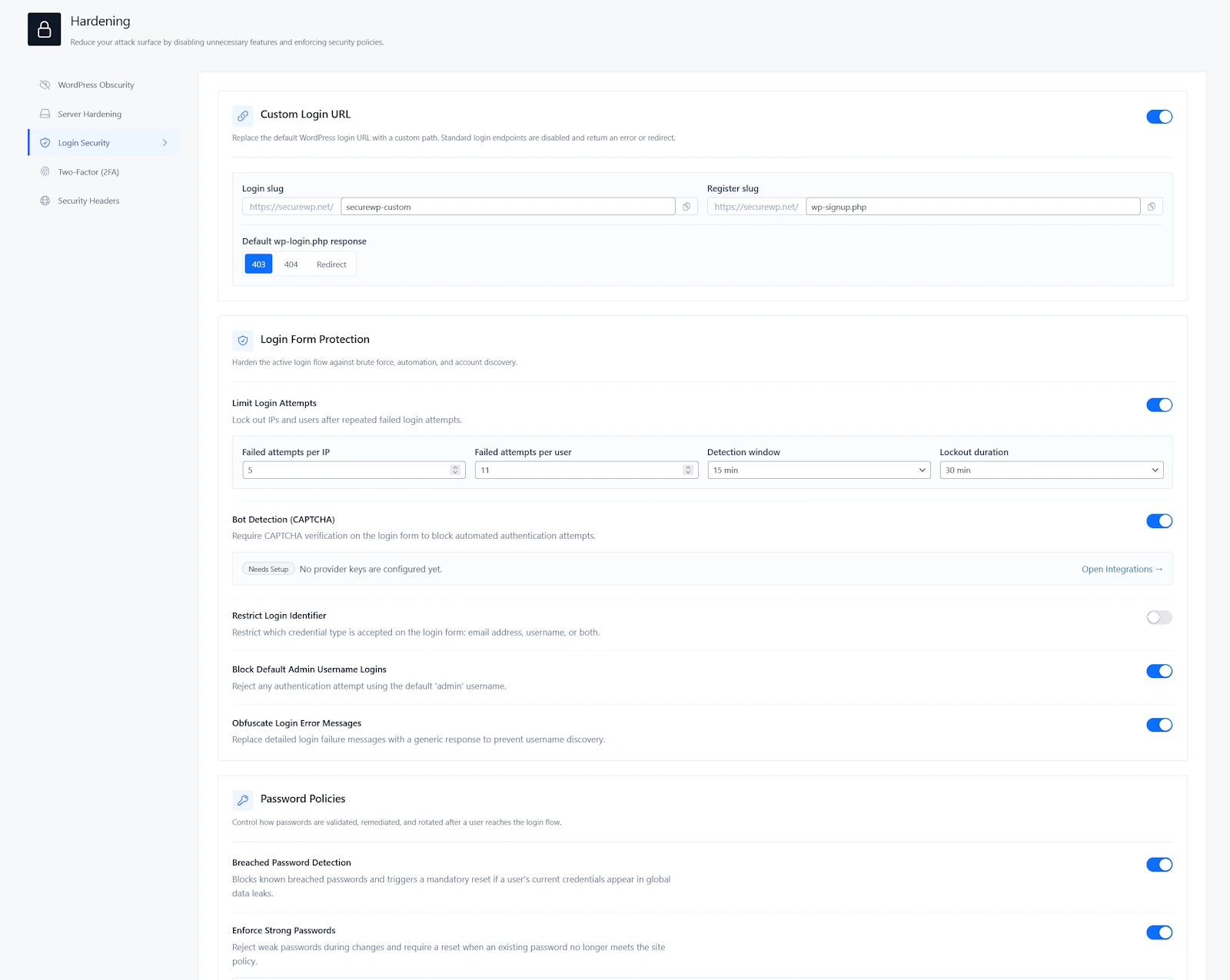
Recommended login form protection
| Setting | Recommended value | Use this because |
|---|---|---|
| Limit Login Attempts | On | Stops unlimited password guessing. |
| Failed attempts per IP | 5 | Blocks aggressive brute force attempts without being too strict. |
| Failed attempts per user | 5-10 | Protects accounts while reducing accidental lockouts. |
| Detection window | 15 minutes | Good balance for most real-world login attacks. |
| Lockout duration | 30 minutes | Slows bots without creating long support issues for real users. |
| Bot Detection / CAPTCHA | Enable when login bots are active | Blocks automated login attempts before they become lockouts. |
| Restrict Login Identifier | Email only for most business sites | Reduces username-based guessing. |
| Block Default Admin Username | On if no real user uses admin | Blocks one of the most common brute force usernames. |
| Obfuscate Login Error Messages | On | Prevents attackers from confirming valid usernames. |
Recommended default: 5 failed attempts per IP, 5-10 per user, 15-minute detection window, and 30-minute lockout duration.
For WooCommerce, LMS, and membership sites
Do not make login protection too aggressive on day one. Customers, members, and students forget passwords. Start with moderate lockout settings, monitor lockouts, then tighten if needed.
If CAPTCHA is enabled, test the login page, registration page, password reset page, WooCommerce My Account page, checkout flow, and any custom login form.
3. Should You Enable a Custom Login URL?
Securewp can replace the default WordPress login URL with a private login path. This reduces noise from bots that attack /wp-login.php and /wp-admin.
Go to Securewp → Hardening → Login Security → Custom Login URL.
Recommended setting
Enable Custom Login URL if you have recovery access, the new URL is documented, and login-related pages have been tested.
| Option | Recommendation |
|---|---|
| Login slug | Use a private, non-obvious slug. |
| Register slug | Keep default registration behavior only if public registration is needed. |
| Default wp-login.php response | Use 403 or 404. |
| Redirect | Avoid unless you have a specific reason. |
Good login slug examples
/team-entry-472/client-access/private-dashboard-entry
Avoid obvious slugs
/login/admin/secure-login/wp-login-new
Do not enable this blindly. If your site uses WooCommerce, membership plugins, LMS plugins, custom login pages, or frontend account dashboards, test those flows before relying on a renamed login URL.
4. Recommended Password Policy Settings
Strong passwords are still one of the simplest ways to reduce account compromise. Securewp helps block weak, reused, and breached passwords.
Go to Securewp → Hardening → Login Security → Password Policies.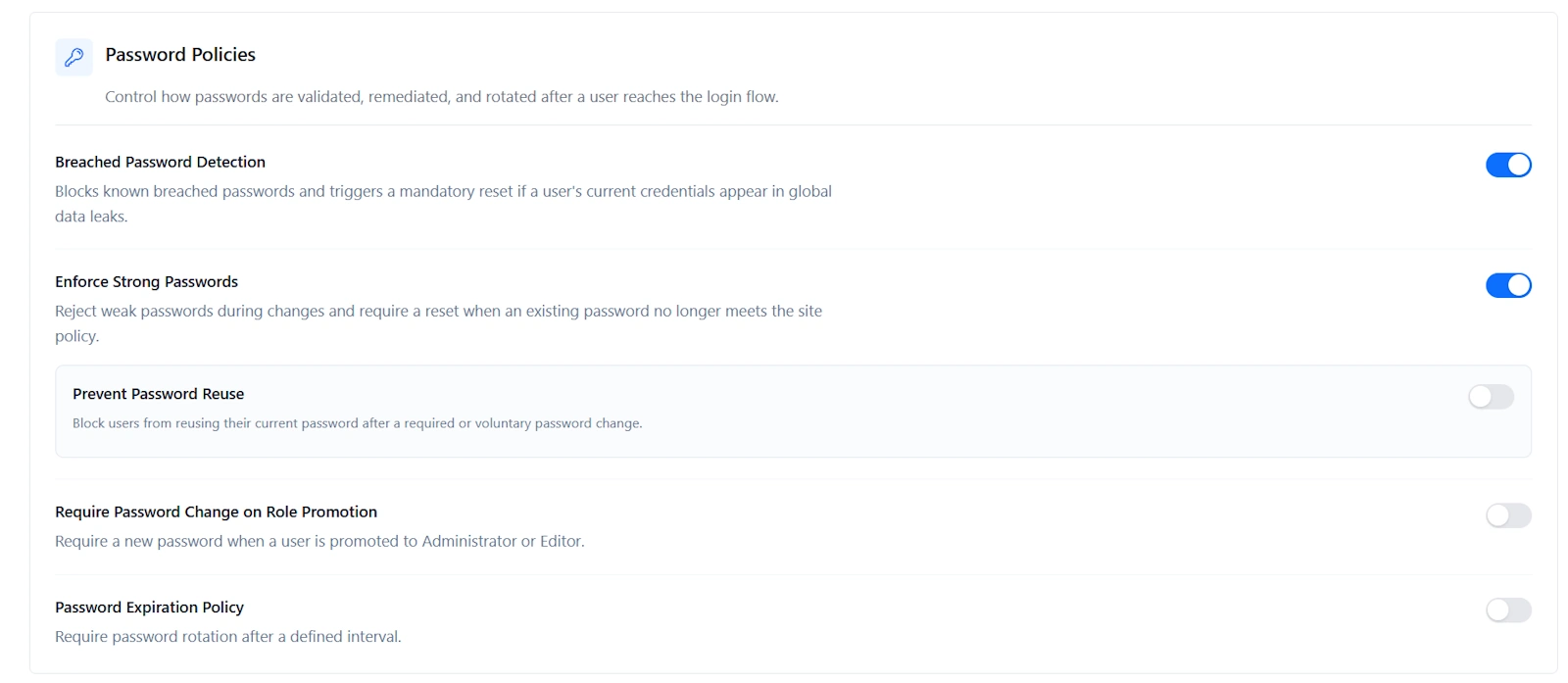
| Setting | Recommended value | Why |
|---|---|---|
| Breached Password Detection | On | Blocks passwords already exposed in public data leaks. |
| Enforce Strong Passwords | On | Prevents weak passwords during password changes. |
| Prevent Password Reuse | On for business, ecommerce, and agency sites | Stops users from returning to the same compromised password. |
| Require Password Change on Role Promotion | On | Protects accounts when users become Administrator or Editor. |
| Password Expiration Policy | Off for most sites | Use only when internal policy or compliance requires rotation. |
For most WordPress websites, breached password detection and strong password enforcement provide better day-to-day security than forcing every user to rotate passwords frequently.
5. Recommended Two-Factor Authentication Settings
Two-factor authentication is one of the highest-value settings in Securewp. It protects the site even if an admin password is stolen, reused, guessed, or phished.
Go to Securewp → Hardening → Two-Factor (2FA).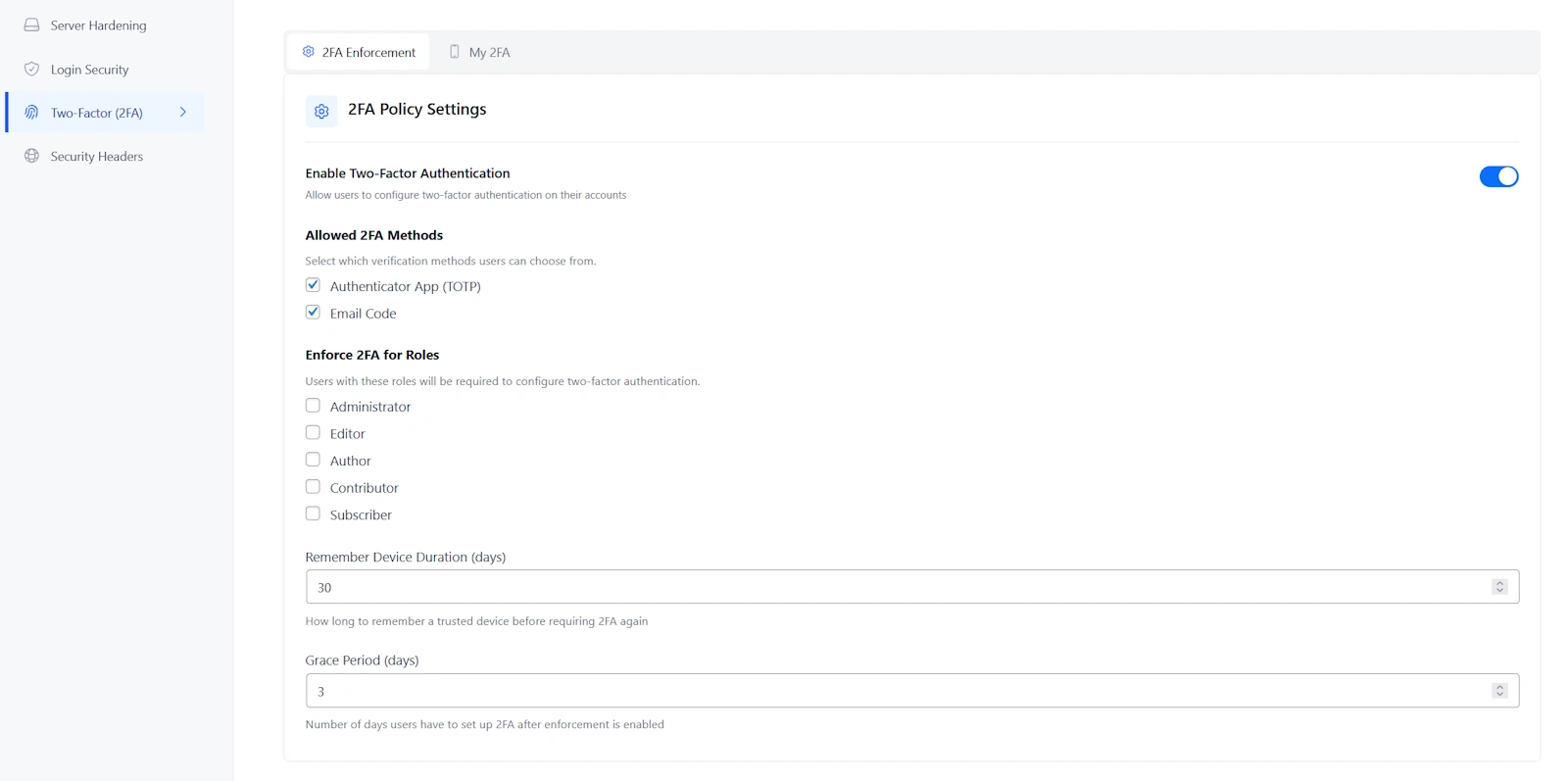
Recommended 2FA enforcement
| User role | Recommended 2FA setting |
|---|---|
| Administrator | Required |
| Editor | Required for business, publishing, ecommerce, and agency-managed sites |
| Shop Manager | Required if WooCommerce is active |
| Author | Optional, required for high-risk publishing sites |
| Subscriber | Optional unless accounts contain sensitive data |
Recommended 2FA methods
- Authenticator App: best default for administrators and developers.
- Email Code: useful fallback for non-technical users.
- Recovery Codes: must be saved by every administrator.
| 2FA option | Recommended value |
|---|---|
| Allowed methods | Authenticator App and Email Code |
| Grace period | 3 to 7 days for teams |
| Remember device | 7 to 30 days |
Do not force 2FA for every subscriber unless your users access private, financial, medical, educational, or membership-protected data. For most public websites, require 2FA for privileged users first.
6. Recommended WordPress Obscurity Settings
WordPress obscurity settings do not replace updates, scanning, or firewall protection. Their job is to reduce unnecessary information exposure and make automated targeting harder.
Go to Securewp → Hardening → WordPress Obscurity.
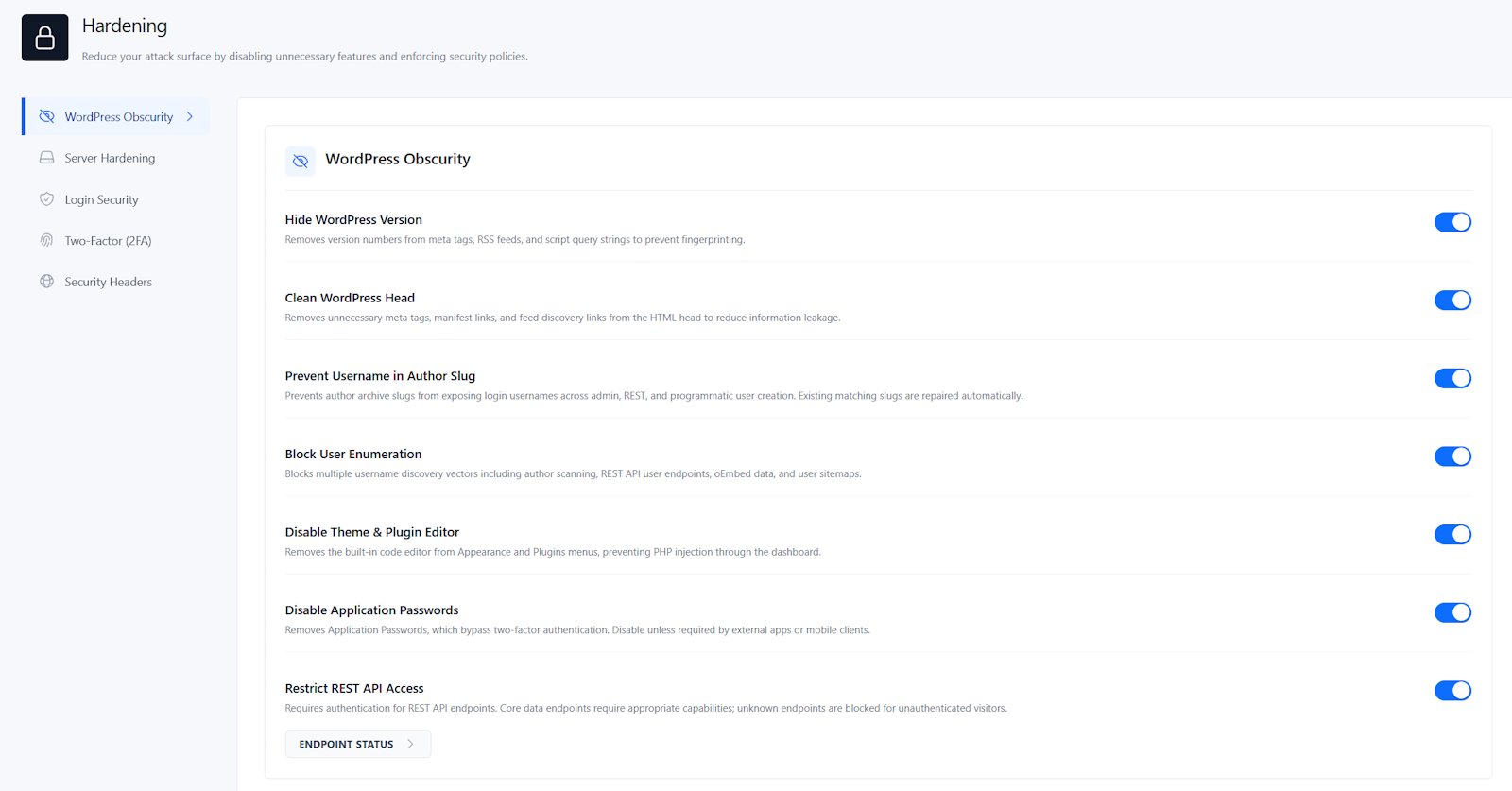
| Setting | Recommended value | Why |
|---|---|---|
| Hide WordPress Version | On | Reduces version fingerprinting in public output. |
| Clean WordPress Head | On for most sites | Removes unnecessary metadata and discovery links. |
| Prevent Username in Author Slug | On | Stops author URLs from exposing login usernames. |
| Block User Enumeration | On | Blocks common username discovery methods. |
| Disable Theme & Plugin Editor | On | Prevents attackers from editing PHP files through wp-admin. |
| Disable Application Passwords | On unless required | Removes an authentication method many sites do not use. |
| Restrict REST API Access | Test first | Useful, but can break forms, checkout, apps, headless sites, and integrations. |
Safe to enable on most sites
- Hide WordPress Version
- Prevent Username in Author Slug
- Block User Enumeration
- Disable Theme & Plugin Editor
Test before enabling
- Disable Application Passwords if you use API clients, mobile publishing, or automation tools.
- Restrict REST API Access if your site uses WooCommerce, forms, headless WordPress, page builders, search filters, or custom integrations.
7. Recommended Server Hardening Settings
Server hardening protects common file paths and execution points attackers abuse after finding a weakness.
Go to Securewp → Hardening → Server Hardening.
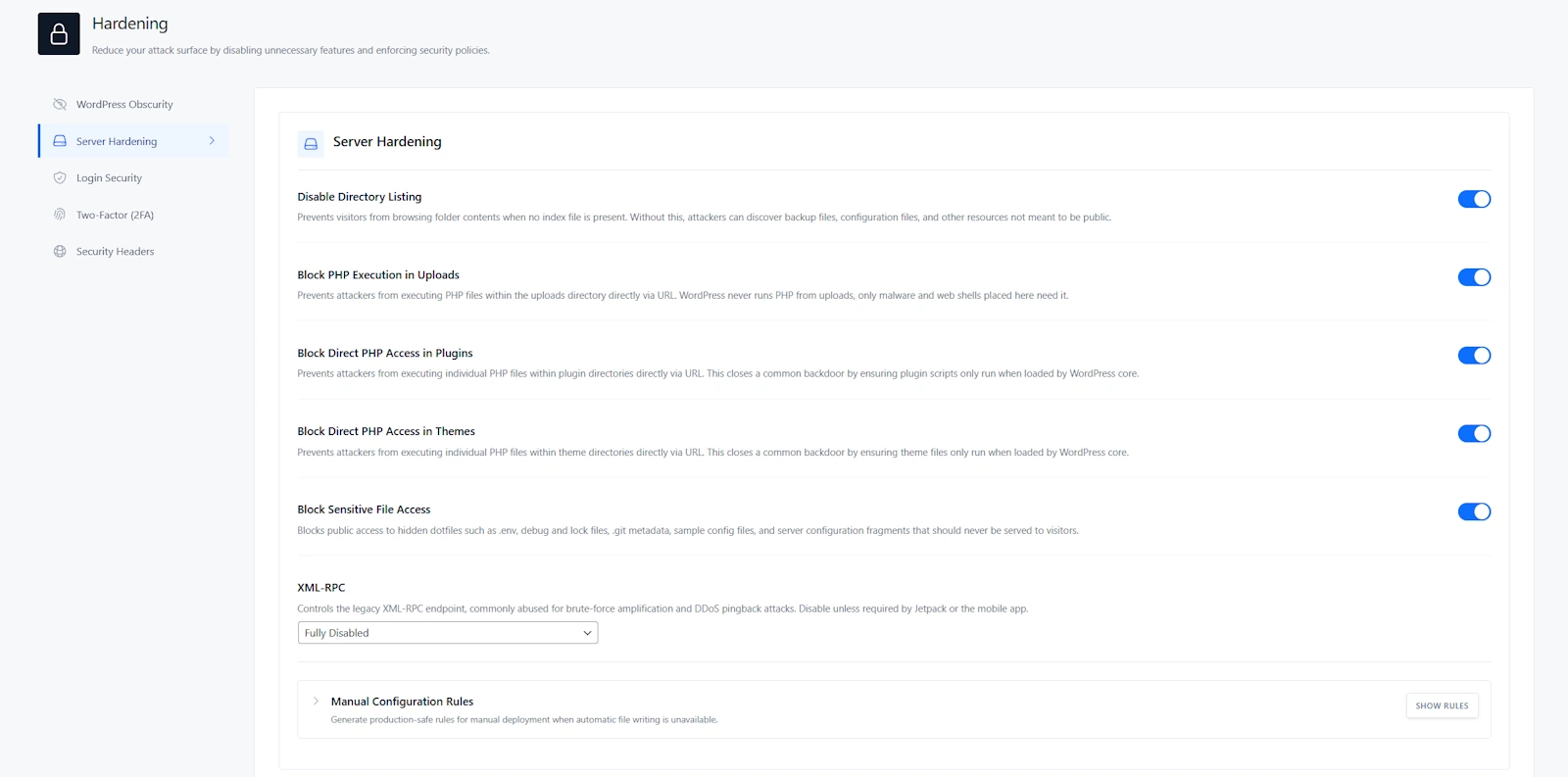
| Setting | Recommended value | Why |
|---|---|---|
| Disable Directory Listing | On | Stops visitors from browsing folders and finding files that should not be public. |
| Block PHP Execution in Uploads | On | Prevents uploaded PHP backdoors and web shells from running. |
| Block Direct PHP Access in Plugins | On for most sites | Stops direct execution of plugin PHP files by URL. |
| Block Direct PHP Access in Themes | On for most sites | Stops direct execution of theme PHP files by URL. |
| Block Sensitive File Access | On | Blocks public access to dotfiles, debug logs, Git metadata, backups, and config fragments. |
| XML-RPC | Fully Disabled if not needed | Reduces brute force and pingback abuse. |
Recommended XML-RPC setting
Use Fully Disabled unless your site depends on Jetpack, a mobile app, or a legacy publishing tool. If XML-RPC is required, use Disable Pingbacks Only to reduce abuse while keeping compatibility.
High-value baseline: Disable Directory Listing, Block PHP Execution in Uploads, and Block Sensitive File Access should be enabled on almost every production WordPress website.
8. Recommended Security Header Settings
Security headers help browsers protect visitors from clickjacking, MIME sniffing, referrer leakage, insecure loading, and some script injection risks.
Go to Securewp → Hardening → Security Headers.
Recommended header baseline
| Header | Recommended setting | Important note |
|---|---|---|
| X-Content-Type-Options | Enable | Safe for most sites. |
| X-Frame-Options | SAMEORIGIN | Use DENY only if the site never needs iframe embedding. |
| Referrer-Policy | strict-origin-when-cross-origin | Good privacy and compatibility balance. |
| Permissions-Policy | Disable browser features you do not use | Be careful with payment, fullscreen, camera, microphone, and geolocation features. |
| Strict-Transport-Security | Enable only after HTTPS is fully verified | Do not enable preload until every subdomain is ready. |
| Content-Security-Policy | Start with Report Only | Test before enforcing because CSP can break scripts, checkout, ads, maps, and embeds. |
Recommended CSP rollout
- Run header analysis.
- Start Content-Security-Policy in Report Only.
- Test your homepage, login page, forms, checkout, account pages, analytics, ads, maps, videos, and embeds.
- Add required trusted domains.
- Keep Skip CSP on Admin Pages enabled unless you have tested wp-admin carefully.
- Switch to Enforce only after real testing.
Recommended HSTS rollout
Enable HSTS only after your site works perfectly over HTTPS. Be extra careful with Include Subdomains and Preload. Those settings are powerful, but they can cause long-term access issues if any subdomain still has broken SSL.
9. Recommended WordPress Firewall Settings in Securewp
After hardening, configure the Securewp firewall. The firewall is where you block malicious traffic, scanner probes, abusive bots, bad IPs, suspicious user agents, country-based abuse, and repeated 404 floods.
Go to Securewp → Firewall.
Recommended firewall configuration order
- Verify IP Detection in Advanced.
- Enable Server-Level WAF if available.
- Add Trusted IPs only when necessary.
- Enable Protection settings.
- Create IP, country, or bot rules only where justified.
- Enable Cloudflare Sync if the site uses Cloudflare.
- Review the Traffic Log after changes.
Firewall rule: Always verify IP detection before strict blocking. If the site uses Cloudflare, a CDN, reverse proxy, or load balancer, wrong IP detection can cause false positives or block the wrong source.
10. IP Detection & Trusted IPs
IP detection tells Securewp which visitor IP is real. This is essential for firewall accuracy.
Go to Securewp → Firewall → Advanced → IP Detection.
| Site setup | Recommended IP detection setting |
|---|---|
| Normal hosting, no proxy | Automatic |
| Cloudflare | Automatic, then apply Cloudflare preset if prompted |
| CDN or reverse proxy | Automatic first, Manual only if needed |
| Direct server connection only | Automatic or Disabled if you are certain no proxy/CDN is used |
Trusted IPs recommendation
Trusted IPs bypass firewall rules, so keep this list short and intentional.
Good Trusted IP examples
- Office static IP
- Agency VPN IP
- Developer VPN IP
- Known uptime monitoring service
- Required integration provider
Bad Trusted IP examples
- Unknown contractor IP
- Residential IP that changes often
- Shared public VPN exit node
- Large IP ranges you do not control
If you add your current IP, confirm it is stable. Otherwise, that allow rule may become useless later or accidentally trust someone else after your ISP changes the IP.
11. Recommended Firewall Protection Settings
Go to Securewp → Firewall → Protection.
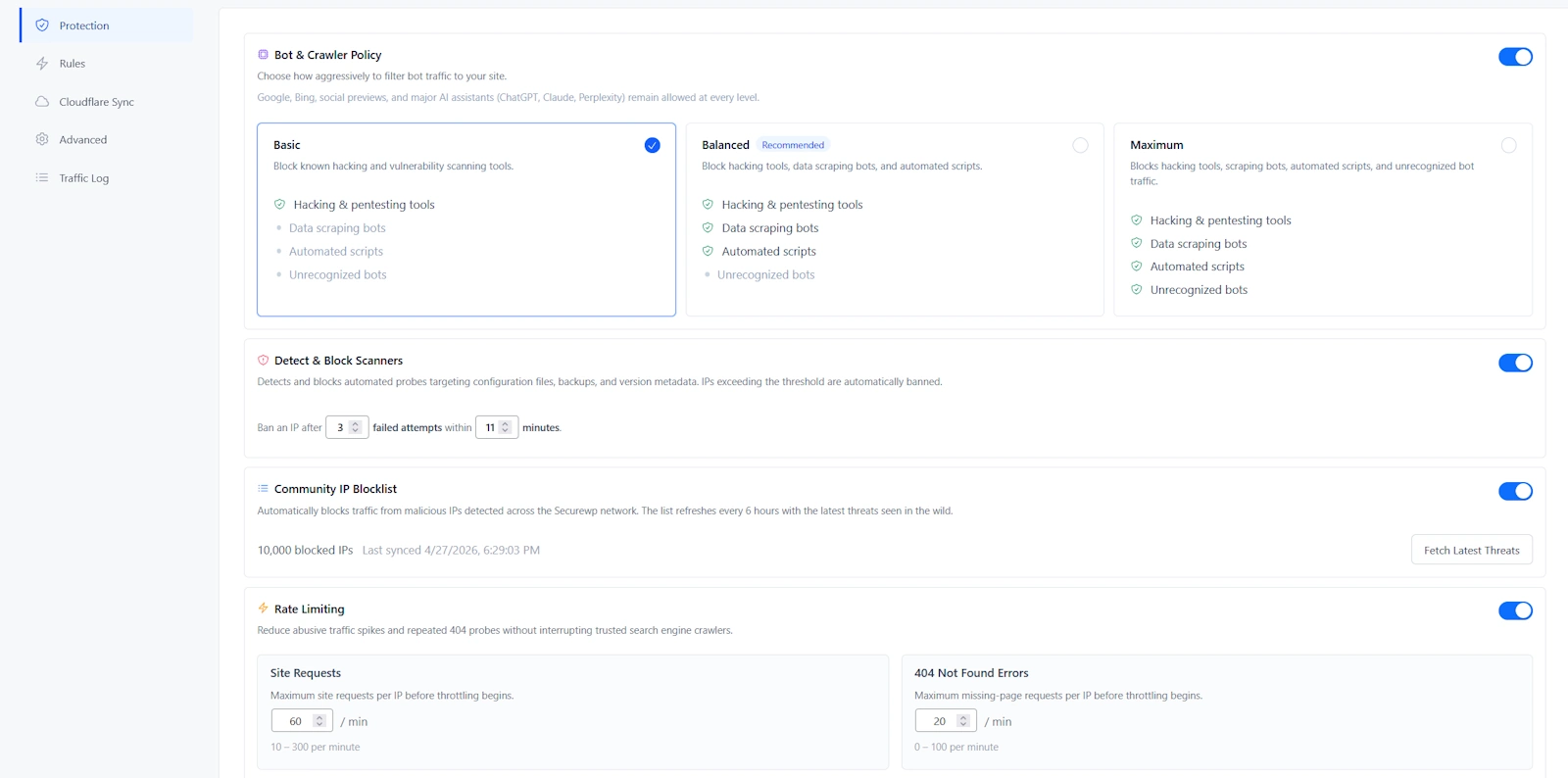
| Firewall setting | Recommended value | Why |
|---|---|---|
| Bot & Crawler Policy | Balanced | Best default for blocking hacking tools, data scrapers, and automated scripts. |
| Detect & Block Scanners | On | Blocks probes for backups, config files, version metadata, and sensitive paths. |
| Scanner threshold | 3 to 5 failed probes | Blocks obvious scanners without being too sensitive. |
| Observation window | 10 to 15 minutes | Good default for repeated probing behavior. |
| Community IP Blocklist | On | Blocks known malicious IPs seen across the Securewp network. |
| Rate Limiting | On, moderate values | Reduces traffic spikes, scraping, and repeated 404 probes. |
Bot & Crawler Policy recommendation
| Policy | Use when |
|---|---|
| Basic | You want the lightest protection or are testing a new site with many integrations. |
| Balanced | Recommended for most WordPress websites. |
| Maximum | Use during active attacks, heavy scraping, or aggressive bot traffic. |
For most sites, use Balanced. Move to Maximum during active abuse, then review the Traffic Log for false positives.
Detect & Block Scanners recommendation
Enable this on almost every production site. Scanner bots commonly request files like:
.env.git/configdebug.logwp-config.php.bakbackup.zip- old plugin paths
- version files
These requests are not normal visitor behavior. Blocking repeat offenders protects the site and reduces server noise.
Rate limiting recommendation
Rate limiting should be enabled, but not too aggressively on dynamic sites.
| Website type | Recommended rate limit approach |
|---|---|
| Business website | Moderate limits |
| WooCommerce | Moderate limits; test cart, checkout, account pages, filters, and payment callbacks |
| Membership or LMS | Moderate to higher limits because logged-in users generate more requests |
| Under attack | Temporarily tighten limits, then relax after traffic normalizes |
12. How to Use the Securewp Firewall Rule Builder
Go to Securewp → Firewall → Rules.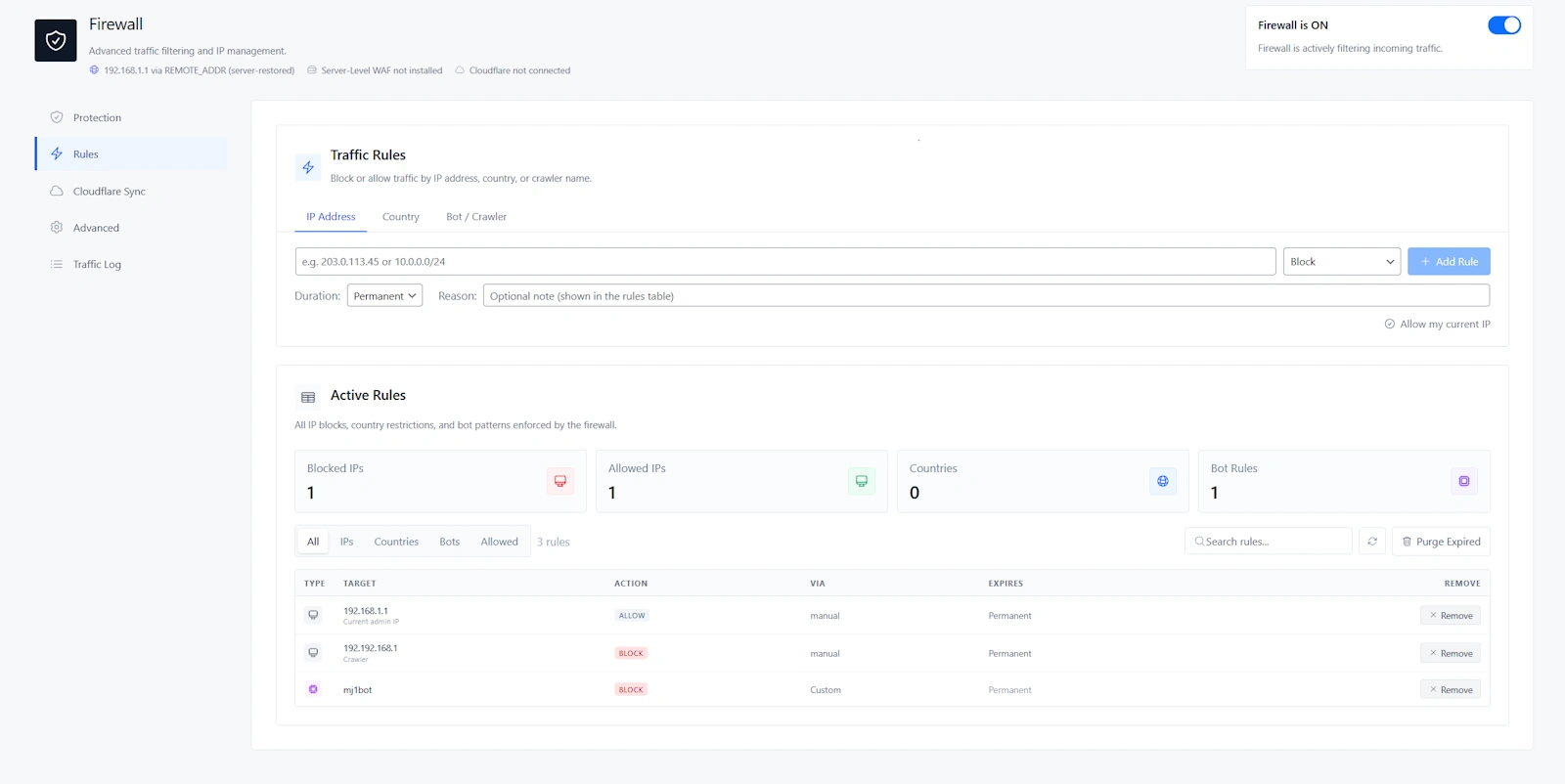
The rule builder lets you block or allow traffic by IP Address, Country, or Bot / Crawler. This is where Securewp becomes practical for real-world abuse: blocking repeat attackers, allowing trusted services, restricting high-risk regions, or stopping aggressive crawlers.
IP Address Rules
Use IP rules when you know exactly who should be blocked or trusted.
Block an IP when:
- The IP repeatedly fails login attempts.
- The IP probes sensitive files.
- The IP causes repeated 404 errors.
- The IP appears repeatedly in the Traffic Log.
- The IP is scraping or attacking the site.
Allow an IP when:
- It belongs to your office.
- It belongs to your agency or developer VPN.
- It belongs to a trusted monitoring service.
- It belongs to a payment, shipping, or integration provider.
| Situation | Recommended duration |
|---|---|
| Temporary login attack | 1 day or 7 days |
| Repeated scanner IP | 30 days |
| Known malicious server | 90 days or Permanent |
| Office or agency VPN | Permanent allow rule, only if IP is stable |
Do not overuse allow rules. Allowed IPs bypass firewall rules. Only allowlist IPs you control or fully trust.
Country Rules
Country blocking can be useful, but it should be used carefully. It is not the first setting to enable unless your business has a clear geographic audience.
| Country policy | Recommended use |
|---|---|
| Block selected countries | Use when firewall logs show repeated abuse from countries you do not serve. |
| Allow only selected countries | Use only for local businesses, private portals, internal sites, or region-specific services. |
Use country blocking when:
- Your business serves only specific countries.
- You see repeated attacks from specific regions.
- Your website is a local business site.
- Your site is a private portal or internal tool.
Avoid strict country blocking when:
- You sell internationally.
- Your customers travel.
- Your team works remotely.
- You rely on global payment gateways or shipping services.
- You are not sure where legitimate visitors come from.
Allow-only country mode is strict. It can block legitimate visitors, VPN users, remote workers, travelers, and unknown-country traffic.
Bot / Crawler Rules
Use bot rules when a specific crawler is wasting resources, scraping content, or hitting the site aggressively.
Block bot patterns like:
AhrefsBotSemrushBotMJ12bot- Known fake browser or scanner user agents
Trust bot patterns only when:
- You fully trust the service.
- The user-agent pattern is specific.
- The crawler is required for business, SEO, monitoring, or integrations.
Avoid trusting broad patterns like bot, crawler, Mozilla, or Google. Broad trusted patterns can accidentally bypass firewall protections.
13. Recommended Cloudflare Sync Settings
If your website uses Cloudflare, Securewp can sync supported firewall rules to Cloudflare so bad traffic is blocked before it reaches your hosting server.
Configure Cloudflare in Securewp → Settings → Integrations → Cloudflare Connection, then manage sync in Securewp → Firewall → Cloudflare Sync.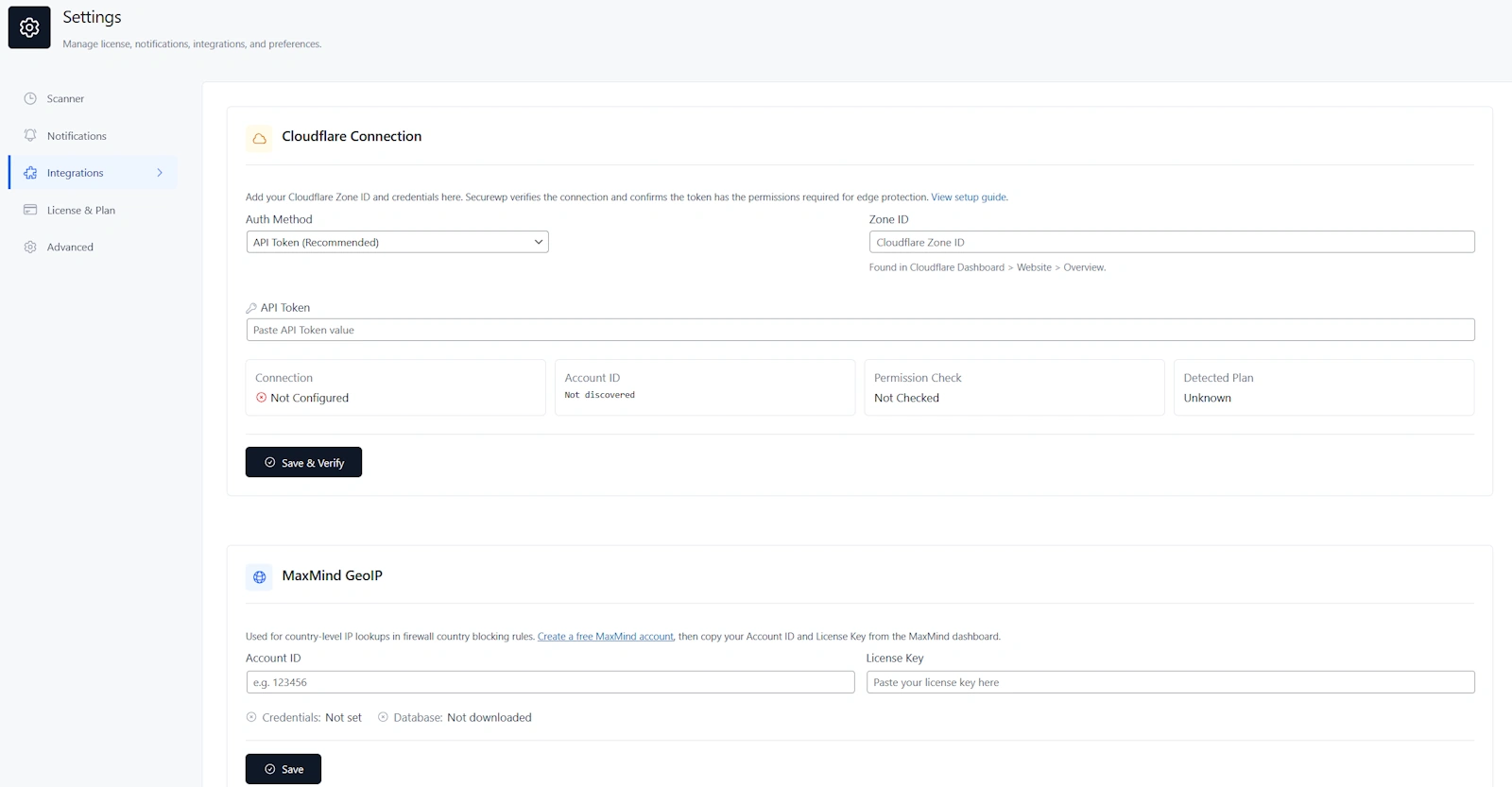
| Cloudflare setting | Recommended value |
|---|---|
| Auth method | API Token |
| Cloudflare Sync | On if the site uses Cloudflare |
| Push now | Use after major firewall rule changes |
| Automatic Edge Blocks | Enable during active abuse or high-risk traffic |
| Edge block duration | Temporary first, longer only for repeated abuse |
Why Cloudflare Sync is valuable
Origin firewall rules block traffic at your server. Cloudflare edge rules can block traffic before it reaches WordPress, PHP, or the database. That helps reduce server load during brute force attacks, scanner storms, scraping, and repeated malicious requests.
Recommended automatic edge block approach
Start moderate. Do not set thresholds too low if your users may share the same IP, such as offices, schools, universities, public Wi-Fi networks, or corporate VPNs.
14. Recommended Malware Scanning Settings
After hardening and firewall protection are configured, run malware scans to detect infected files, unauthorized changes, suspicious code, database issues, exposed sensitive data, and other signs of compromise.
Go to Securewp → Scanner.
| Situation | Recommended scan |
|---|---|
| First scan after setup | Standard Scan |
| Routine protection | Standard Scan |
| After plugin or theme updates | Standard Scan |
| Suspicious redirects, SEO spam, unknown admin users, or host malware warning | Deep Scan |
| After malware cleanup | Deep Scan, then Standard Scan for follow-up |
Recommended scan schedule
| Website type | Recommended schedule |
|---|---|
| Small business website | Weekly |
| Low-change brochure site | Weekly or monthly |
| WooCommerce store | Daily or weekly |
| Membership or LMS site | Daily or weekly |
| Recently cleaned hacked site | Daily for a short monitoring period |
| Agency-managed sites | Based on client risk and maintenance plan |
Scheduled scans are especially valuable for Pro users because they turn scanning from a manual task into continuous monitoring.
How to handle scan findings
- Fix Critical findings first.
- Fix High findings next.
- Review Medium findings during maintenance.
- Do not ignore findings unless you verified the reason.
- Run another scan after cleanup or repair.
Use Repair only when the file can be safely restored. Use Delete only when you know the file is malicious or unnecessary. Use Ignore only for verified false positives.
15. Recommended Vulnerability Scanner Settings
Many WordPress hacks happen because a known vulnerable plugin or theme remains installed after a patch is available. Securewp’s Vulnerability Scanner helps you monitor plugins, themes, and WordPress core for known CVEs and patch guidance.
Go to Securewp → Vulnerabilities.
Recommended workflow
- Click Check Now.
- Review Critical and High issues first.
- Update affected plugins and themes.
- Delete unused vulnerable plugins and inactive themes.
- Replace abandoned plugins with maintained alternatives.
- Run another vulnerability check after updates.
| Severity | Recommended action |
|---|---|
| Critical | Fix immediately. Update, disable, remove, or replace the affected component. |
| High | Fix the same day and review firewall/audit logs for suspicious activity. |
| Medium | Fix during the next maintenance window. |
| Low | Fix during normal updates, but do not ignore forever. |
Simple rule: If you are not using a plugin or theme, remove it. Inactive code can still become a security risk.
16. Recommended Security Notification Settings
Security alerts turn Securewp from a one-time setup tool into an active monitoring system. If nobody receives alerts, important findings can sit unnoticed.
Go to Securewp → Settings → Notifications.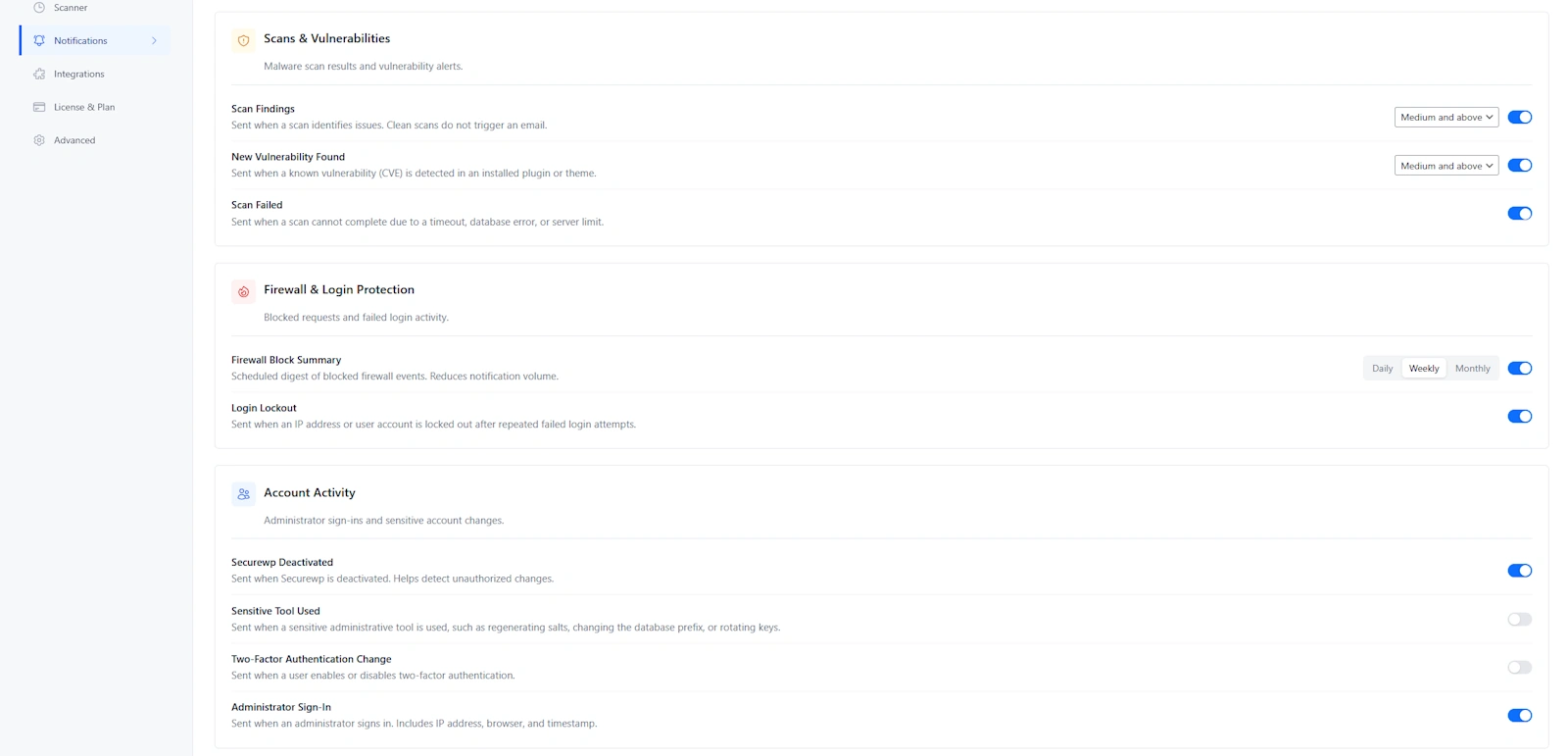
Recommended email recipients
- Site owner
- Developer
- Agency support inbox
- Security or technical admin mailbox
Recommended scan and vulnerability alerts
| Alert | Recommended value |
|---|---|
| Scan Findings | On |
| New Vulnerability Found | On |
| Scan Failed | On |
| Severity threshold | Medium and above for most sites; High and above for high-volume agency inboxes |
Recommended firewall and login alerts
- Firewall Block Summary: Daily for active sites, weekly for low-traffic sites.
- Login Lockout: On.
Recommended account activity alerts
- Securewp Deactivated
- Sensitive Tool Used
- Two-Factor Authentication Change
- Administrator Sign-In
These alerts matter because attackers often try to disable security tools, change 2FA settings, create admin access, or use sensitive tools after gaining access.
Webhook recommendation
Use Slack, Discord, or a generic JSON webhook if you manage multiple websites, run a client maintenance plan, or want alerts delivered to an operations channel instead of only email.
17. Audit Log & Ongoing Monitoring
The Audit Log helps answer the most important post-incident question: what changed, when, and by whom?
Go to Securewp → Settings → Advanced to enable audit logging, then review events in Securewp → Audit Log.
| Audit setting | Recommended value |
|---|---|
| Audit Logging | On |
| Log Level | Standard for most sites |
| Log Storage | Database + File if storage allows |
| Retention | Long enough to investigate incidents and client questions |
Events worth watching
- Administrator sign-ins
- Failed login patterns
- Password changes
- New admin users
- Plugin installs and activations
- Theme changes
- Hardening setting changes
- Securewp deactivation
- Sensitive tool usage
Simple weekly security routine
- Review Securewp scan findings.
- Check Vulnerability Scanner results.
- Review firewall blocked traffic and active rules.
- Check login lockouts.
- Review new administrator users.
- Remove unnecessary firewall allow rules.
- Update vulnerable plugins and themes.
18. Best Securewp Settings by Website Type
Small business website
| Hardening | Enable WordPress Obscurity and Server Hardening baseline. |
|---|---|
| Login Security | Enable login limits, obfuscated errors, and 2FA for admins. |
| Firewall | Use Balanced bot policy, scanner blocking, community blocklist, and moderate rate limiting. |
| Scanning | Weekly Standard Scan. |
| Alerts | Email notifications for scan findings, vulnerabilities, and login lockouts. |
WooCommerce store
| Hardening | Enable safe hardening, but test REST API and security headers carefully. |
|---|---|
| Login Security | Enable login limits and 2FA for Administrators and Shop Managers. |
| Firewall | Use Balanced bot policy; tune rate limits around cart, checkout, account pages, and payment callbacks. |
| Cloudflare | Enable Cloudflare Sync if the store uses Cloudflare. |
| Scanning | Daily or weekly scans depending on order volume and risk. |
Membership, LMS, or community website
| Login Security | Use moderate lockout settings to avoid locking out real users. |
|---|---|
| CAPTCHA | Enable if fake registrations or login bots are active. |
| 2FA | Require for staff, instructors, admins, and editors; optional for regular members. |
| Firewall | Use Balanced bot policy and monitor rate limiting carefully. |
| Scanning | Daily or weekly depending on user activity. |
Agency-managed client websites
| Baseline | Use the same Securewp hardening and firewall baseline across client sites. |
|---|---|
| 2FA | Require for all administrators. |
| Alerts | Send notifications to agency support inbox or Slack/Discord webhook. |
| Audit Log | Enable for accountability and incident review. |
| Scanning | Schedule based on maintenance plan and client risk. |
Headless or API-heavy WordPress website
| REST API | Do not restrict until all frontend, app, and integration endpoints are tested. |
|---|---|
| Application Passwords | Disable only if no API clients rely on them. |
| Firewall | Enable firewall and tune rate limits around API traffic. |
| Security Headers | Test CSP and connection rules carefully. |
| 2FA | Require for human administrators. |
Conclusion: Secure WordPress by Configuring the Right Securewp Modules
The safest WordPress websites are not protected by one setting. They are protected by layers: hardening, login security, two-factor authentication, firewall protection, malware scanning, vulnerability monitoring, alerts, and audit logs.
With Securewp, the recommended baseline is clear: enable hardening, protect the login page, require 2FA for administrators, verify firewall IP detection, use Balanced bot protection, block scanners, enable the community blocklist, tune rate limiting, scan for malware, monitor vulnerabilities, and turn on alerts.
Then add stricter controls only when they match your website: country blocking for region-specific sites, Cloudflare Sync for Cloudflare-powered domains, CSP enforcement after testing, REST API restrictions after compatibility checks, and custom login URLs after recovery access is confirmed.
To check your site externally, run the Securewp Remote Security Scanner. To secure the site from inside WordPress, install the Securewp Security Plugin and use this guide as your recommended configuration checklist.


