High CPU usage is a common problem for WordPress websites, especially on shared hosting, WooCommerce sites, busy blogs, and sites with many plugins.
Sometimes the cause is obvious: a heavy plugin, no caching, slow database queries, or a traffic spike. But one cause is often missed: abusive crawler bots.
Bad bots can crawl a WordPress site aggressively, hit expensive pages repeatedly, trigger database-heavy requests, and consume PHP workers until the server becomes slow or unavailable. Even if the bot never logs in or exploits a vulnerability, the request volume alone can create serious performance problems.
This case study explains how malicious crawler traffic caused high CPU usage on a WordPress website, how to investigate the issue, and how SiteFort’s bot policy, firewall builder, and Cloudflare Sync brought the server back under control.
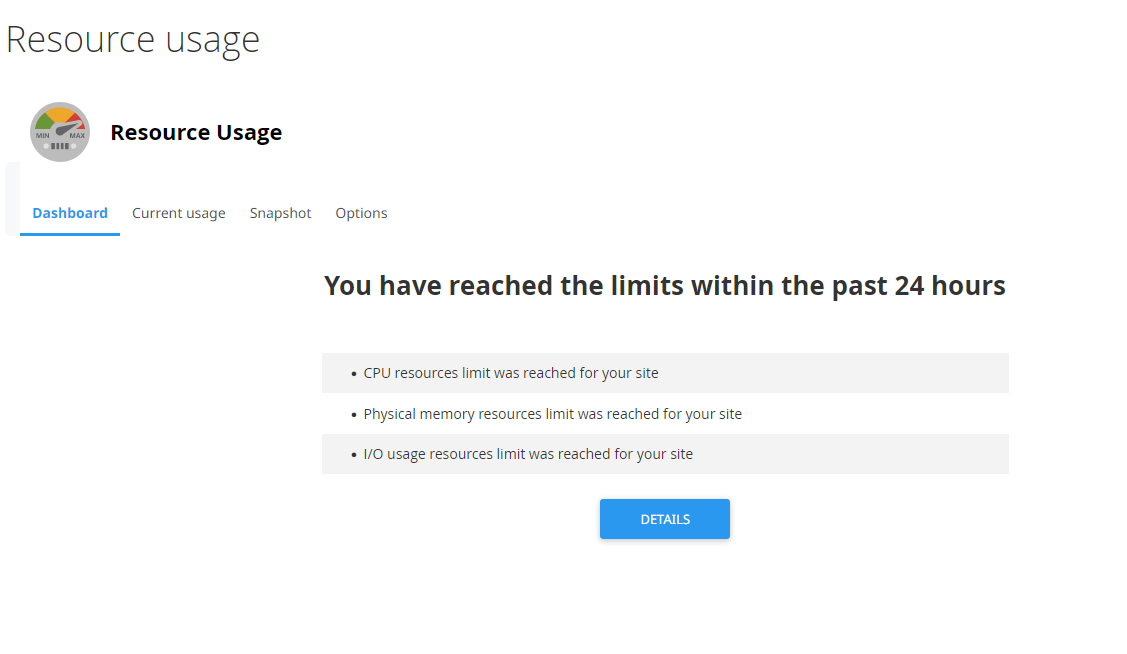
Symptoms of High CPU Usage in WordPress
The website owner first noticed several signs that the server was under pressure:
- Frequent timeouts: Visitors sometimes saw
503 Service Unavailableerrors because the server could not respond fast enough. - Hosting resource warnings: The host sent alerts that the account was exceeding CPU or entry process limits.
- Slow page loading: Pages took much longer to load, especially during traffic spikes.
- Unstable admin dashboard: Saving posts, updating plugins, and loading reports all slowed down.
- No matching traffic increase: Analytics did not show a real rise in human visitors.
That last point mattered most. When CPU usage climbs but real visitor traffic stays flat, the cause is usually bots, cron tasks, malware, or server abuse rather than genuine growth.
Common Causes of High CPU Usage
Before blaming bots, rule out the usual suspects:
- Poor caching or no full-page cache
- Heavy page builders or bloated themes
- Slow database queries
- WordPress cron jobs running too often
- Malware or hidden spam scripts
- Aggressive crawler bots or fake crawlers
In this case, the server logs pointed straight at bot traffic: repeated requests from suspicious IPs and user agents, with no matching rise in real visitors.
How to Confirm Bot Traffic Is the Problem
Do not rely only on hosting CPU graphs. They show the server is busy, but not why.
Review the access logs from your hosting panel, cPanel, Plesk, or server logs and look for these patterns:
- Many requests from the same IP address or IP range
- Repeated hits to the same URLs
- Requests to non-existing plugin or theme files
- Large numbers of 404 responses
- Fake Googlebot, Bingbot, or other crawler user agents
- Repeated hits to
wp-login.php,xmlrpc.php,/wp-json/, oradmin-ajax.php
GET /wp-login.php
POST /xmlrpc.php
GET /?s=random-keyword
GET /wp-json/wp/v2/users
GET /wp-content/plugins/old-plugin/readme.txt
GET /wp-content/uploads/2024/../../wp-config.php
A few requests like this are normal. Thousands of them in a short window are not. In this case, a small number of IPs and user agents were responsible for the majority of the load, and the request pattern was too repetitive and too aggressive to be legitimate search crawling.
Google notes that robots.txt only manages crawler behavior for crawlers that choose to respect it. It has no way to enforce compliance, which is why abusive bots need firewall and rate-limiting controls instead.
How SiteFort Stopped the Attack
Blocking bots is most effective at the WordPress layer first, then pushed out to the edge. If every request still reaches PHP before being evaluated, the server is already doing the expensive work. SiteFort handles both sides of this from one dashboard.
1. Turn On SiteFort’s Bot Policy
SiteFort’s bot policy setting identifies and blocks known bad crawlers automatically, without requiring manual rule-writing for every known bad actor. This was the first control applied, and it immediately cut a large share of the abusive requests before they consumed a PHP worker.
2. Build Firewall Rules for the IPs and User Agents You Found
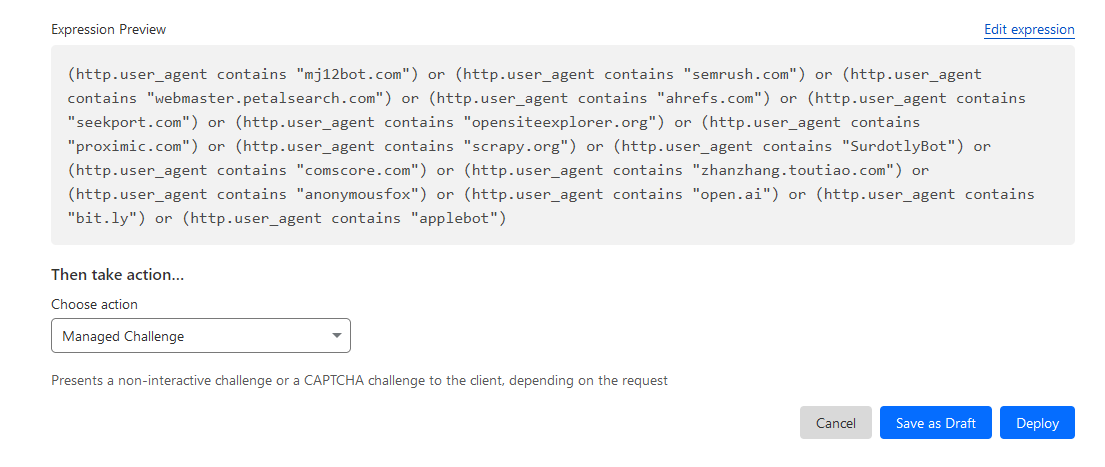
The log review identified the specific IPs and fake user agents driving the load. SiteFort’s firewall builder was used to block those IPs directly and to block the fake crawler user agents that did not match their claimed identity.
Be careful with user-agent blocking. Do not block legitimate search engines such as Googlebot or Bingbot without verifying the request. Some bad bots impersonate Googlebot, so confirm the IP actually belongs to the crawler it claims to be before blocking on name alone.
3. Rate-Limit the Expensive Endpoints
Rate limiting is often safer than a permanent block because it controls request volume without shutting out every visitor. The endpoints worth limiting are the same ones identified during the log review:
/wp-login.php/xmlrpc.php/wp-json//wp-admin/admin-ajax.php- Search result pages
- WooCommerce cart and checkout actions
Test rate limits carefully. A rule that is too strict can block real customers, editors, or payment callbacks along with the bots.
4. Sync the Rules to Cloudflare for Edge-Level Blocking
Once the bot policy, firewall rules, and rate limits were set inside SiteFort, Cloudflare Sync pushed the same block rules to the edge. That means repeat offenders get stopped before the request ever reaches the origin server, instead of being evaluated by WordPress first and blocked afterward.
This is the difference between fixing the problem in WordPress and fixing it before WordPress ever sees the request. SiteFort Security Plugin handles both from the same set of rules.
The Results
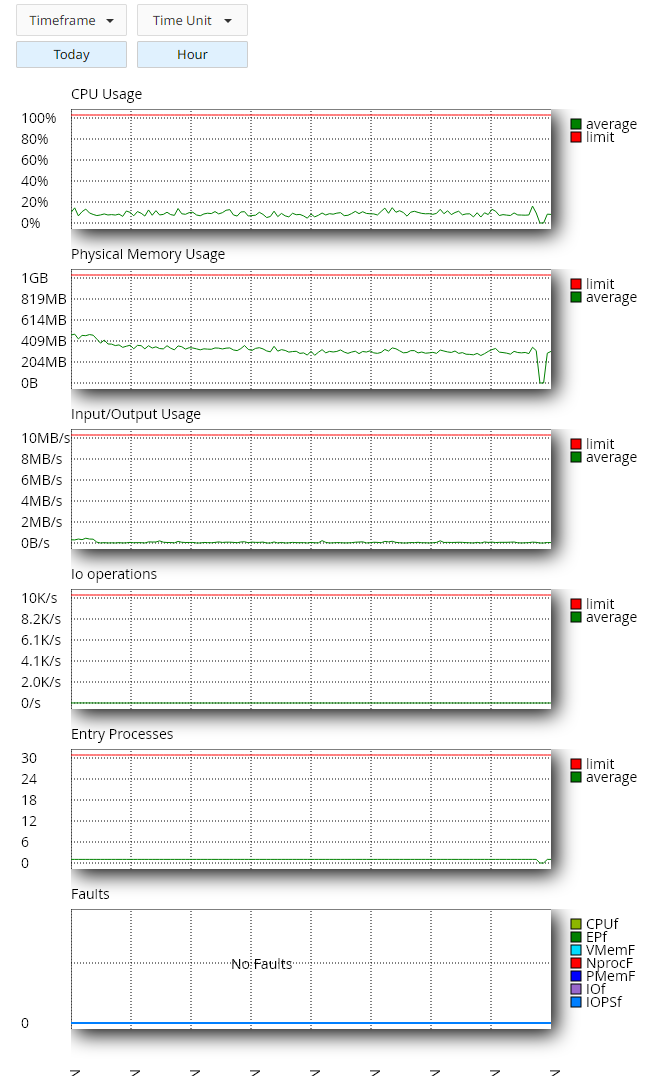
After the bot policy, firewall rules, and rate limits were applied and synced to the edge, server load dropped significantly:
- CPU usage returned to normal levels.
- 503 errors stopped appearing.
- Page load times improved.
- The WordPress dashboard became usable again.
- The host stopped sending resource-limit warnings.
What Not to Do
- Do not block all bots blindly. You may block legitimate search crawlers and hurt indexing.
- Do not rely only on robots.txt. Well-behaved crawlers may follow it, but abusive bots ignore it entirely.
- Do not apply aggressive rate limits to checkout or login without testing first. You may block real customers along with the bots.
Check for Malware Too
Bad bots are not the only possible cause of high CPU usage. Malware can consume resources by sending spam, generating hidden pages, running background scripts, calling remote servers, or injecting redirect code.
Warning signs include unknown PHP files in uploads, modified core files, suspicious cron jobs, unknown admin users, spam pages appearing in Google Search, and high CPU usage that persists even after bot traffic is blocked.
SiteFort scans for malware, backdoors, web shells, malicious PHP, injected scripts, modified core files, and vulnerable plugins and themes. The Securewp Remote Security Scanner is a useful first check for public-facing symptoms such as visible malware indicators, blacklist status, and suspicious redirects.
Long-Term Prevention Checklist
- Use full-page caching where possible.
- Keep SiteFort’s bot policy and firewall rules active, not just applied once during an incident.
- Keep WordPress, plugins, and themes updated, and remove anything abandoned.
- Review access logs periodically, not only after a CPU spike.
- Run malware scans on a regular schedule.
Frequently Asked Questions
Will blocking bad bots hurt my SEO or search rankings?
Not if the rules target the right traffic. Blocking based on verified bad IPs and unverified fake crawler user agents does not affect real search engines. The risk only appears when site owners block entire user-agent categories or countries without checking whether legitimate crawlers or customers are included.
Can rate limiting break my WooCommerce checkout?
It can if the limit is set too aggressively. Test rate limits on cart, checkout, and account pages before rolling them out fully, since these pages are used repeatedly by real customers in a short time.
Does robots.txt stop malicious crawlers?
No. Robots.txt only works with crawlers that choose to respect it. Abusive bots ignore it by design, which is why firewall rules and rate limiting are needed instead.
How do I tell a bad bot from a real visitor in my logs?
Look for repeated requests to the same URL from the same IP, a mismatch between the claimed user agent and its actual behavior, and requests to sensitive endpoints like wp-login.php or xmlrpc.php with no corresponding rise in real traffic in your analytics.
Fix the Traffic, Not Just the Symptom
High CPU usage in WordPress is not always caused by real traffic or a slow plugin. Abusive bots, fake crawlers, and login or XML-RPC attacks can overload a server just as easily.
Identify the pattern first by checking access logs and separating real users from automated traffic. Then fix it at the source: enable SiteFort’s bot policy, build firewall rules for the specific IPs and user agents involved, apply rate limits to the expensive endpoints, and sync those rules to Cloudflare so repeat offenders are stopped at the edge.
If you are not sure whether your site has visible malware, redirects, or public security exposure, start with the Securewp Remote Security Scanner. For ongoing protection, use SiteFort Security Plugin to manage bot policy, firewall rules, and Cloudflare Sync from inside the dashboard.